
PVsyst Lesson 1: Five settings to know on the first screen
What to press when PVsyst opens: Grid-Connected, New, the project name, the Variant box and the Save button locked in the trial version, with the video.
Lesson summary
The narration is in Korean with English subtitles (CC). The text below follows the narration. All examples are virtual plants.
Lesson 1 covers what to press when you open PVsyst for the first time. The example plant, used from lesson 1 onward, is a virtual rooftop called Example Roof 1 MW. The lesson screen is the trial version, so the Save button is locked. The screen menu names are listed in the table below with what each one does.
The three buttons at the top are system types. Standalone is an off grid system running on batteries, and Pumping is for water pumps, so neither is used for factory or rooftop plants. Plants that connect to the grid use the leftmost button, Grid-Connected. When the project window opens, press New to start a fresh project, click the Project's name box and type a name that is easy to recognize.
The project window has two boxes. The upper Project box is where you choose the Site File, which holds the plant location, and the Weather data File. The lower Variant box holds the Main parameters, Optional and Simulation buttons. They stay grey until a location has been chosen, so nothing is wrong when they cannot be pressed yet.
The Save button in the Variant box is also grey. This is the trial version, so saving is locked. Hover over it and a tooltip says it saves the active variant. In the full version this button saves each variant separately so they can be compared later. Comparing variants is covered in lesson 11.
Five settings to know from lesson 1. One, a grid tied plant uses Grid-Connected. Two, give the project a name that is easy to recognize. Three, the Site File and Weather data File are chosen in the next lesson. Four, Main parameters stay grey until a location is set. Five, saving is locked in the trial version.
Screen menus and key numbers
Screen menu names
| On screen | What it is |
|---|---|
| Grid-Connected | Plant connected to the grid |
| Standalone | Off grid system with batteries |
| Pumping | Water pumping system |
| New | New project |
| Project's name | Project name box |
| Site File | Plant location file |
| Weather data File | Meteo data file |
| Variant | A design option on the same site |
| Main parameters | Required settings |
| Optional | Extra settings |
| Simulation | Run the calculation |
| Save | Save the variant (locked in the trial version) |
Key numbers
| Item | Value |
|---|---|
| Video length | 1 min 40 s |
| System type buttons | 3 (Grid-Connected, Standalone, Pumping) |
| Example plant | Example Roof 1 MW (virtual) |
| Settings to know | 5 |
Frequently asked questions
Which button do I press when PVsyst opens?
For a plant connected to the grid, such as a factory or rooftop system, press the leftmost Grid-Connected button. Standalone is for battery systems and Pumping for water pumps.
The Main parameters button is grey and cannot be pressed. Is something wrong?
No. It is locked until a site location is chosen. Choose the site file and weather file in the Project box and it unlocks (lesson 2).
Can I save in the PVsyst trial version?
On the trial screen used in the lesson, the Save button in the Variant box was grey and locked. To save variants and compare them you need the full version.
Previous and next lesson
Lesson files
All files are free to download right away
No sign up and no subscription needed. If the lessons help you, please consider subscribing to our YouTube channel.
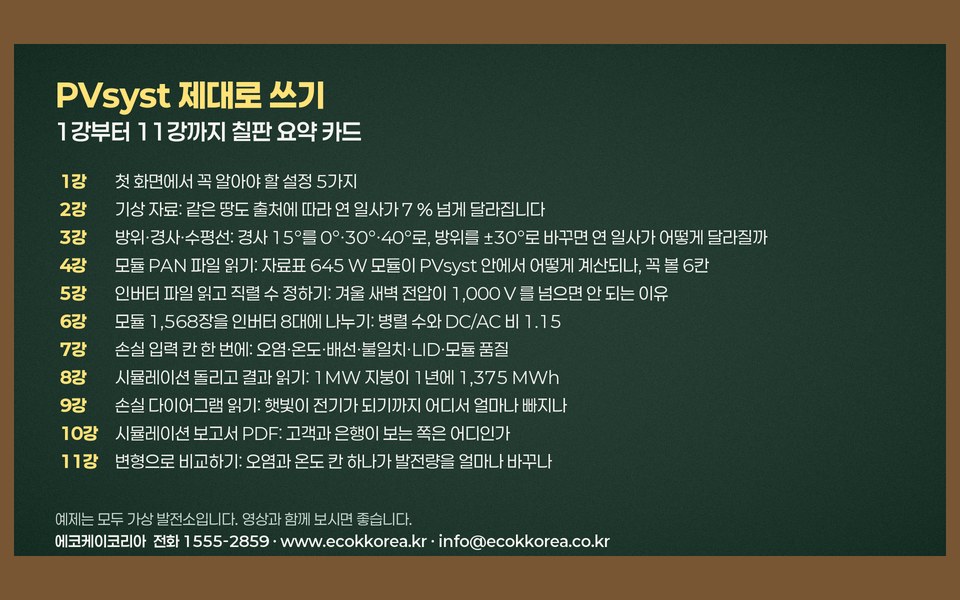
PVsyst lesson cards, lessons 1 to 11
The chalkboard summary from the end of each lesson, plus a lesson list. In Korean.
Download (PDF 2.7 MB)
Other lesson files and sample reports are on the Lesson files page. Files are for study and reference. Numbers in the examples come from virtual plants or cases with the location removed. Most files are in Korean.